
Your iPhone is probably the recorder you carry most. You use it for meetings, lectures, interviews and quick ideas. But audio is hard to use later. You cannot skim it, search it or paste it into an email.
Turning a recording into text fixes that. This guide shows you how to do it, how to get better results, and what to do with the text once you have it.
Why text beats audio
A one-hour recording takes one hour to listen to. A transcript takes a few minutes to skim. With text you can:
- Find a name, number or decision in seconds.
- Copy a quote into a report or an email.
- Share what was said with someone who was not there.
- Turn spoken action items into a real to-do list.
A good summary goes one step further. Often you do not need every word, only the main points and what to do next.
Before you record: a few tips
The quality of a transcript starts with the quality of the audio.
- Keep the iPhone close to whoever is speaking. On a table between two people works well.
- Cut background noise where you can. Close the window, move away from the coffee machine.
- Take turns speaking. Speaker detection works best when people do not talk over each other.
- Tell people you are recording. It is polite, and in many places it is required.
Step by step with VoiceWork
VoiceWork records on your iPhone and writes the recording up for you: a transcript with speaker names, a short summary, and to-dos with reminders.
1. Start recording quickly
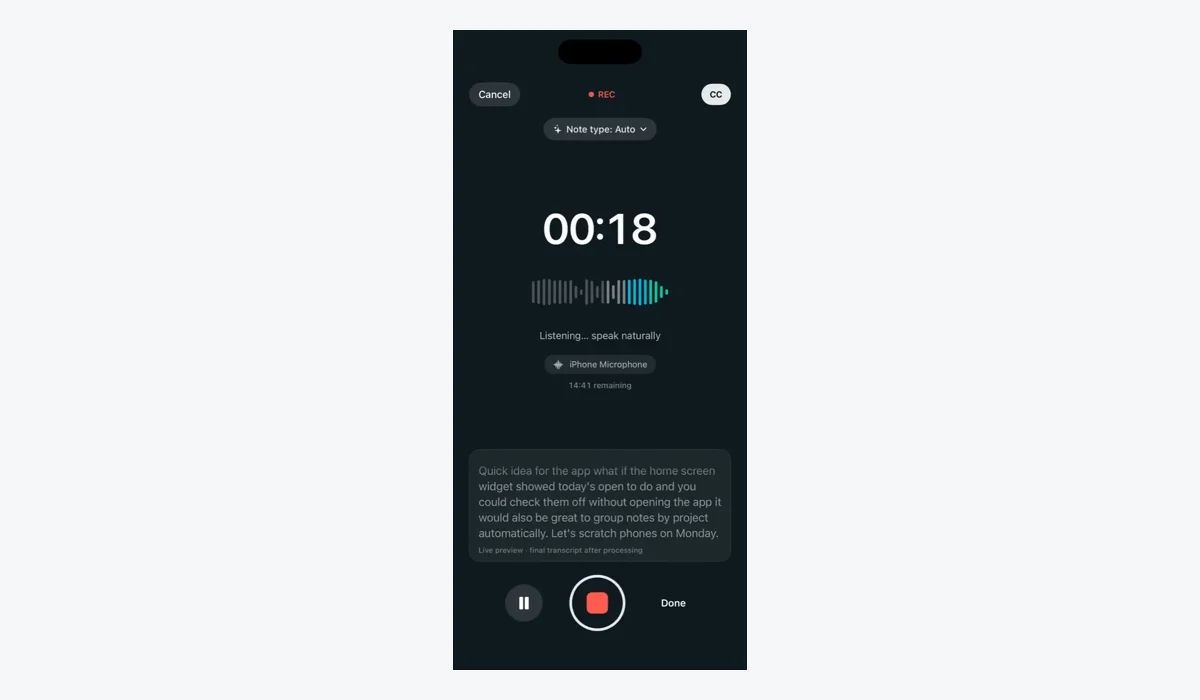
Open the app and tap record. If you are in a hurry, ask Siri, press the Action Button, or use a widget or the Control Center button. You can pause or finish from the Lock Screen, so you do not have to unlock your phone mid-conversation.
While you record, your words appear on screen. If the microphone hears nothing, you get a warning, so you do not find out too late that nothing was captured.
2. Or import a recording you already have
Already recorded something in Voice Memos or received audio in WhatsApp? Share it to VoiceWork, or import audio or video from Files. It gets the same transcript, summary and to-dos as a new recording.
3. Pick a note type and add your words
Choose a note type such as Meeting, Lecture, Interview, Journal or Idea, or create your own. If your recording has names, product names or technical terms, add them to your custom vocabulary so they come out right.
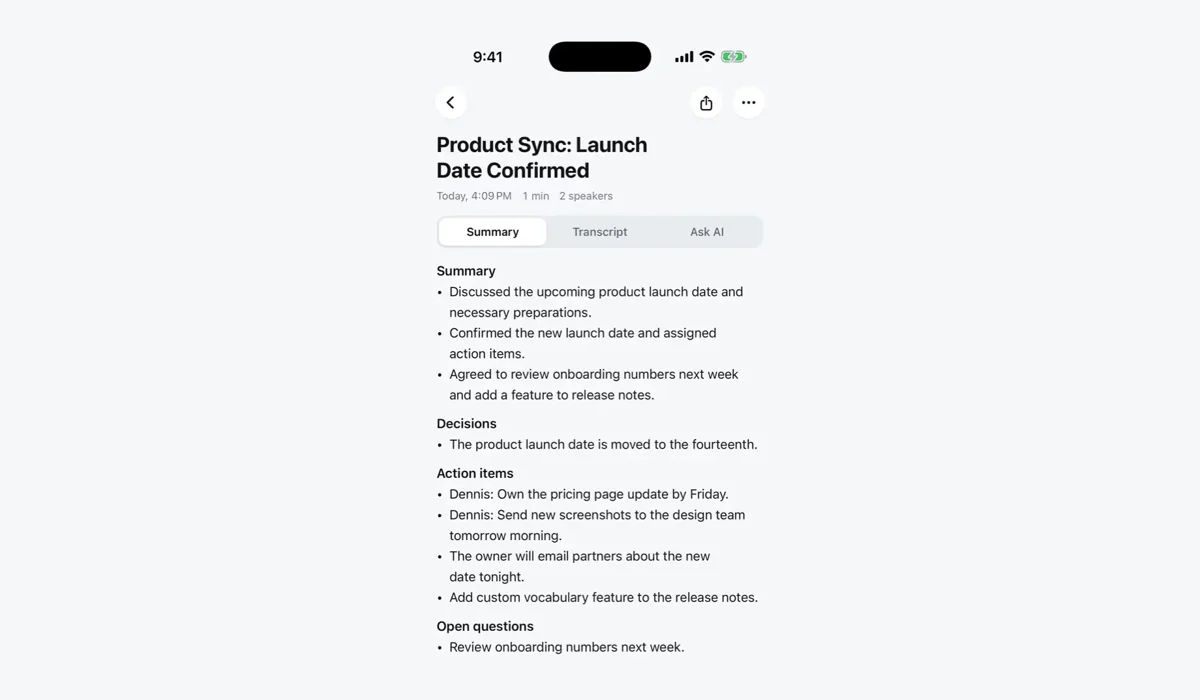
4. Read the transcript, summary and to-dos
When the recording is done, you get the full transcript with speaker names. You can rename speakers so "Speaker 2" becomes the real person. Above it, the summary gives you the main points, and the to-dos list what needs to happen next. You can set reminders or send to-dos to Apple Reminders.
5. Ask questions later
A week later you might remember that a deadline was mentioned, but not which meeting it was in. Ask across all your notes and get an answer with links back to the moment it came from.
6. Share or export
Export a note as PDF, Markdown, plain text or SRT subtitles. SRT is handy if you need captions for a video. You can also share a read-only link that opens without an account, or translate the note into another language.
Languages
Transcription works in more than 16 languages, and the app is available in 10 languages. That helps if you record in one language and work in another.
What about privacy?
Recordings can contain sensitive conversations. With VoiceWork, the audio stays on your device. Only the text of your notes syncs, so you can read them on Apple Watch, Mac or the web at app.voiceworkapp.com. You can also see and delete the audio stored on your phone, one recording at a time.
How long can a recording be?
On the free plan you get 120 minutes a month, with recordings up to 15 minutes each. That covers quick ideas, short meetings and voice notes. For long lectures or meetings, Pro is unlimited (fair use) with recordings up to 2 hours.
A simple routine to try this week
- Record your next meeting or lecture on your iPhone.
- Right after, read the summary and check the to-dos.
- Send the follow-up while the conversation is still fresh.
- At the end of the week, ask your notes what you decided.
After a week you will know whether talking instead of typing fits how you work.
Want to try it with your next recording? Download VoiceWork free on the App Store.