
Otter is one of the best-known AI note takers. If you are reading this, you are probably comparing it with other options. That is a good idea. The right tool depends on where you record, what you do with your notes afterwards, and how you feel about privacy.
This post does not rate Otter or list its plans. Those change, and the best source for them is Otter's own website. Instead, it explains how VoiceWork works, so you can put the two side by side and decide for yourself.
Start with how you record
Before you compare features, think about your day.
- Do you mostly record video calls, in-person meetings, lectures, or quick thoughts on the go?
- Do you record on a phone, a laptop, or both?
- Do the people in your meetings mind a note-taking bot joining the call?
- What happens to the notes later? Do you share them, turn them into tasks, or ask questions about them weeks later?
Your answers matter more than any feature list. A tool that fits how you already work is the one you will keep using.
How VoiceWork works
VoiceWork records meetings, lectures and quick thoughts, then writes them up for you. Every note gets three things:
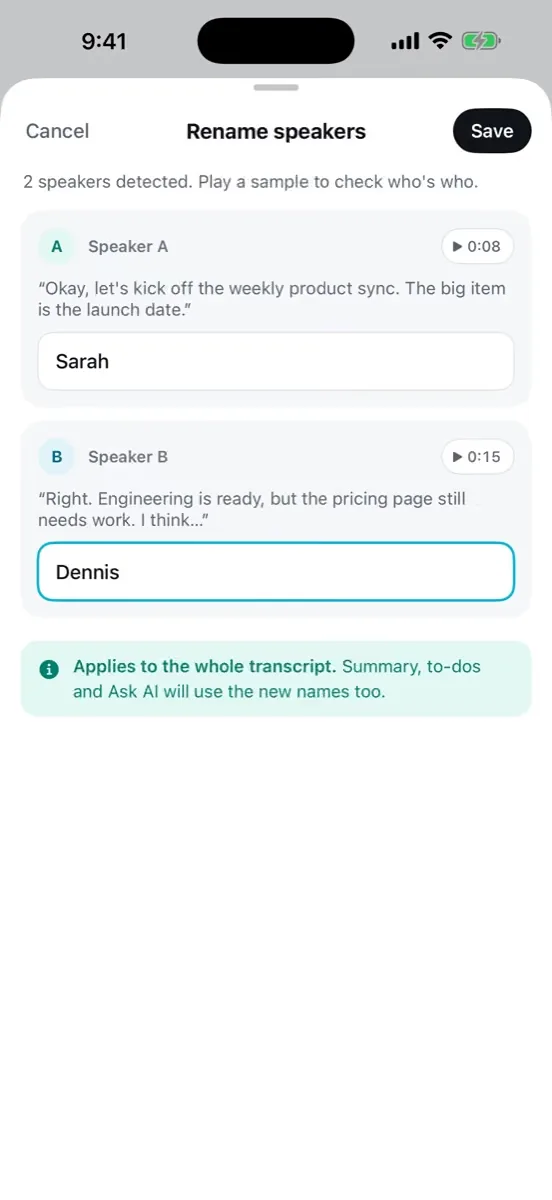
- A transcript with speaker names. You see who said what, and you can rename speakers.
- A short summary. You get the main points without reading the whole transcript.
- To-dos with reminders. Action items come out of the conversation, and you can send them to Apple Reminders.
It runs on iPhone, Apple Watch, Mac and the web at app.voiceworkapp.com.
No bot in the call
Some people do not like it when an extra participant joins a call just to take notes. VoiceWork does not work that way. It records on your own device, so no bot joins the call. You record the conversation the way you would with any recorder, and the write-up appears in your notes.
As always, let people know when you record them.
Quick capture for thoughts that do not wait
Not every recording is a planned meeting. Ideas come up while you walk, drive or cook. On iPhone you can start a recording with Siri, the Action Button, a widget or the Control Center button. You can pause or finish from the Lock Screen. While you record, you see your words appear, and you get a warning if the microphone hears nothing.
Getting the words right
Names and industry terms are where transcripts often go wrong. VoiceWork lets you add custom vocabulary for names and terms. You can also choose a note type, such as Meeting, Lecture, Interview, Journal, Idea or your own, so each note is shaped for what it is.
Transcription works in more than 16 languages, and the app itself is available in 10 languages.
Asking your notes instead of searching them
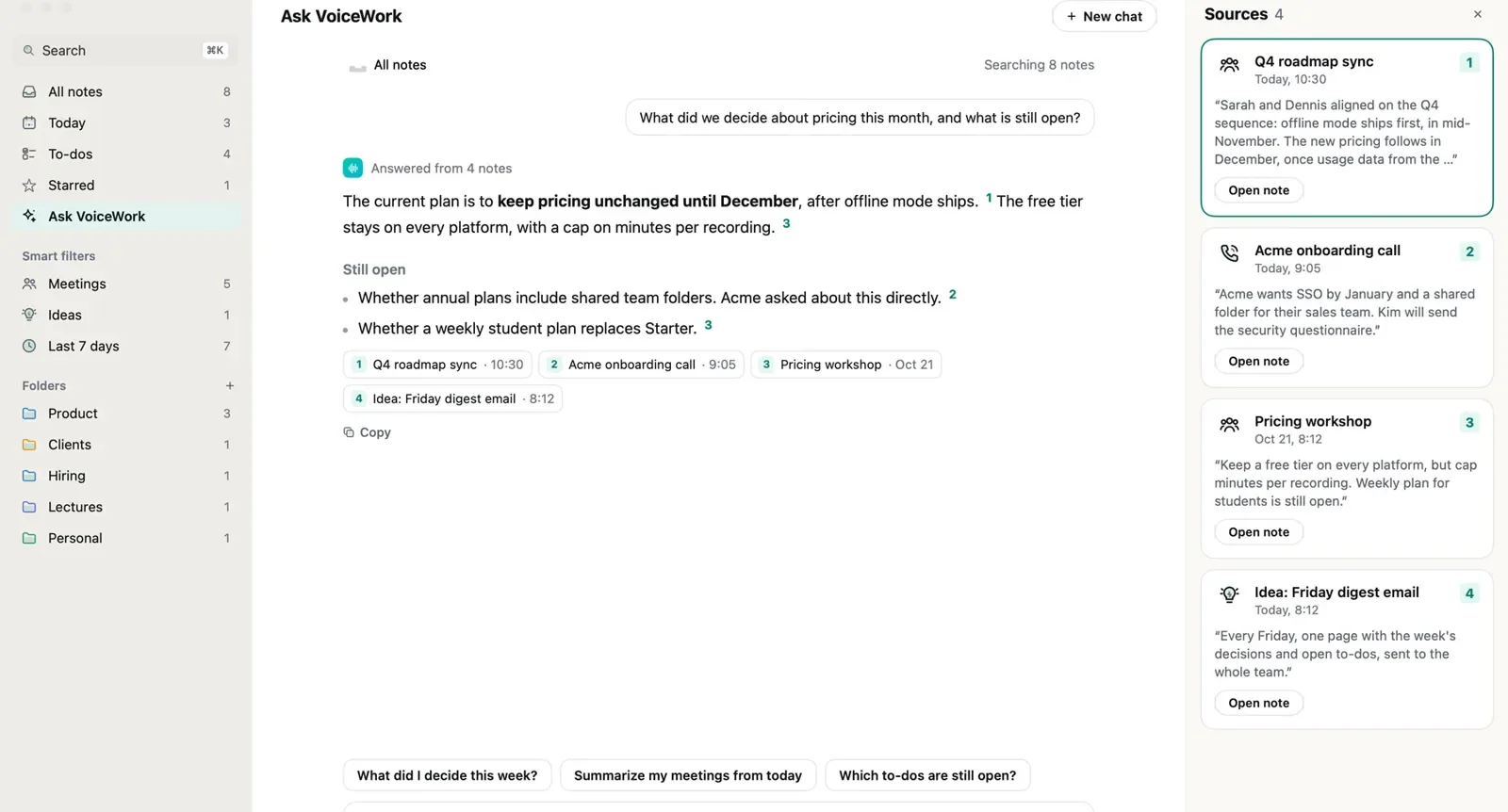
After a few weeks you have dozens of notes. Finding one decision in them by scrolling is slow. In VoiceWork you can ask across all your notes, for example "What did we decide about pricing?", and the answer links back to the moment it came from. You can check the source instead of trusting a summary blindly.
You can also connect your notes to AI apps such as Claude, ChatGPT, Grok, Cursor, VS Code and Claude Code as an MCP connector. Connected apps can read your notes but cannot change them.
Privacy: what stays on your device
Privacy is a fair question for any recording app. With VoiceWork, audio stays on your device. Only the text of your notes syncs between your devices.
Bringing in recordings and getting notes out
You do not have to start from zero. You can import audio or video from Files, or share it from Voice Memos, WhatsApp and other apps. On the web you can drag a file in.
Getting notes out is just as simple. You can export a note as PDF, Markdown, plain text or SRT subtitles, share it as a read-only link that opens without an account, or translate it into another language.
Free plan and Pro
The free plan includes 120 minutes a month, with recordings up to 15 minutes each. That is enough to try it on real meetings, lectures and voice notes. Pro is unlimited (fair use), with recordings up to 2 hours.
How to compare fairly
The best way to choose is to test both tools on the same real recording.
- Pick a typical meeting or lecture, not a perfect demo.
- Check how well each tool handles your names and terms.
- Read the summary and to-dos. Would you act on them as they are?
- Try to find one decision a week later.
- Check where your audio is stored and what syncs.
Whichever tool wins that test is the right one for you.
If you want to see how VoiceWork handles your own recordings, try it free on the App Store.